Specifications:
1. Human detection with artificial intelligence: mixing line, area, bidirectional flow detection, for the human shape, the element does not trigger any alarm;
2. Color night vision and infrared: Made from the detection light, it records full colors throughout the day;
3. Support for DIY alarm sound and siren / new custom speakers with high volume (high power 4 watts);
4. Direct AP connection / Wireless connection / Wired connection;
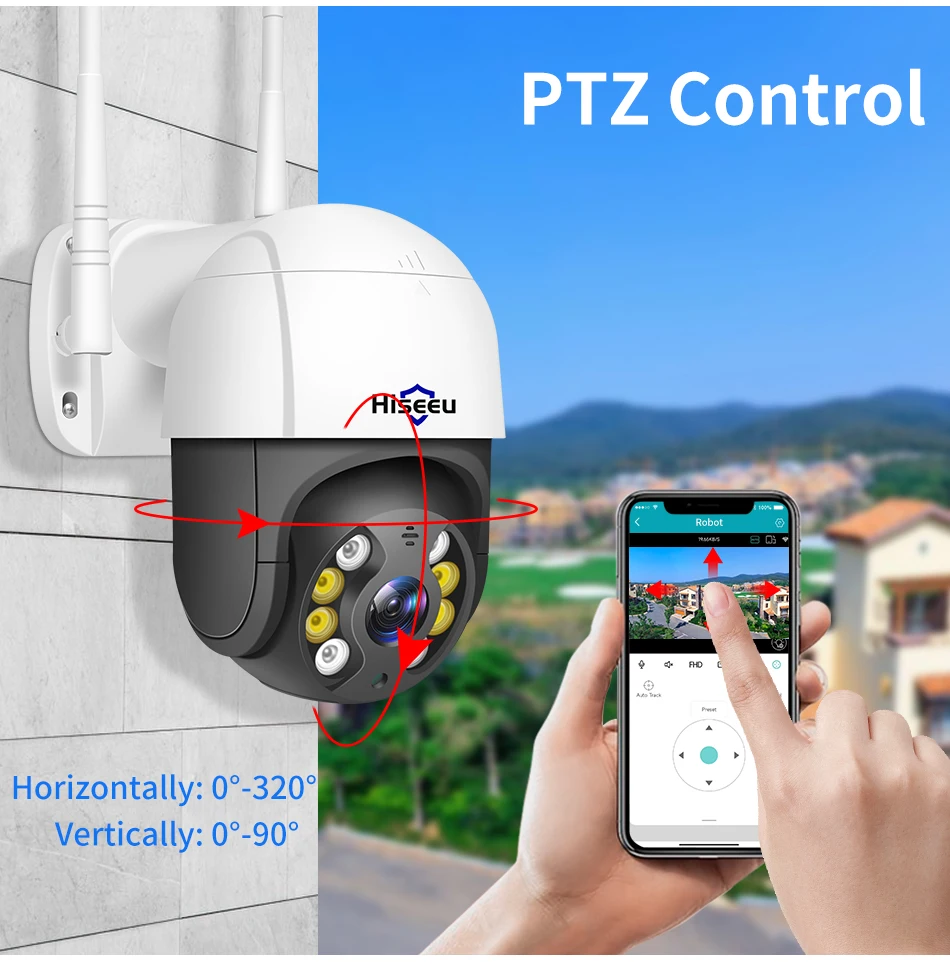
5. Digital zoom 5X: rotates 320° horizontally and 90° vertically,
Press and hold on the screen with both hands to zoom in/out and see more details;
6. TF card and cloud storage: Registration of an SD card with a maximum of 128 GB and paid cloud storage, with more stable data security;
7. Support for VIF Protocol: Compatible with third-party CCTV system
8. Remote Access P2P/Multiplayer: The P2P technology allows you to view the live status of your home from anywhere, simply by using the existing P2P account on the app via your smartphone or tablet.
9. New H.265X storage design, lower TF card storage that is more stable and more durable;
10. Xmeye independently developed the RTS Cloud architecture, which is faster and more stable for previewing;
Human discovery with artificial intelligence
Smart detection function for artificial intelligence, supports mixing line, area, bidirectional flow detection, for human shape, easy setup in the application.
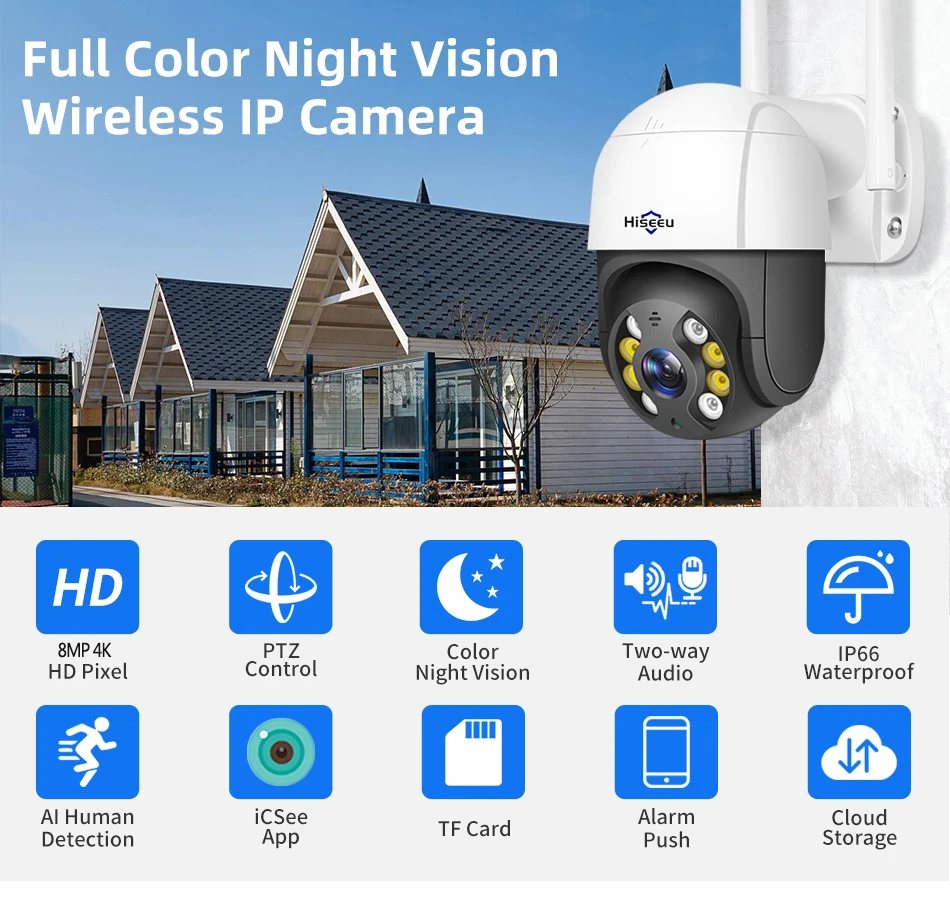
1080P (2MP) resolution vs 5MP vs 8MP (4K) ultra high definition
The image enjoys 8-megapixel resolution with better light saturation, more brilliance, less noise, and other features.

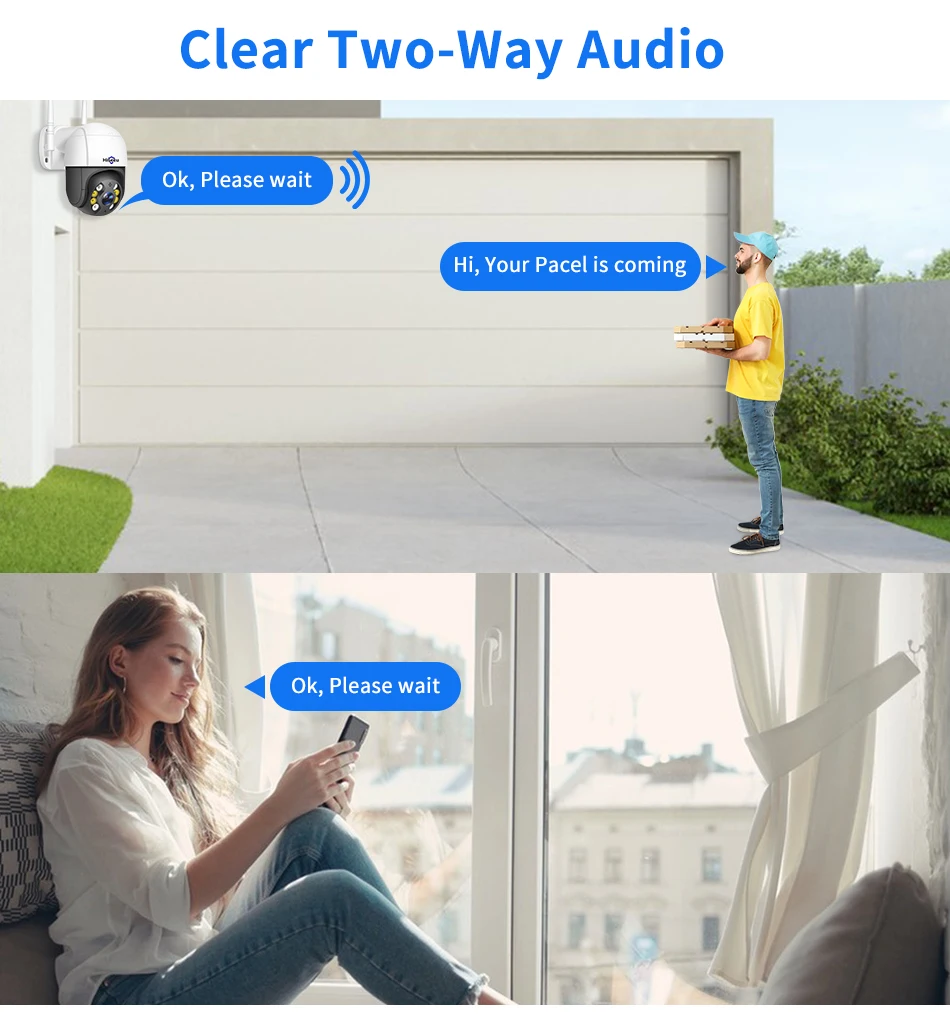
Sound cancellation in two directions
Now regardless of the distance, you can easily talk through an IP camera.
Warning: Human Movement Detection
When the security camera detects human movement, it will send a message to your mobile phone.

5X PTZ digital zoom.
BTZ: rotates 320° horizontally and 90° vertically, remote control for displaying any corner.
Infrared and color night vision
4 pieces of integrated white LED lights and infrared cut LED lights, you can get high-quality video even at night.
Note: The smart IR-Cut filter automatically switches between day and night. 
IP66 waterproof 
It is easy to contact:
The camera can be connected wirelessly or via a wired cable to the router through RJ45, and the camera supports connection to a small NVR. If you need a CCTV camera system, you can purchase an NVR.

Set up AP hotspot
Our camera also supports AP hotspot connection, which does not require any network. (AP mode does not require a distance of more than 10 meters) 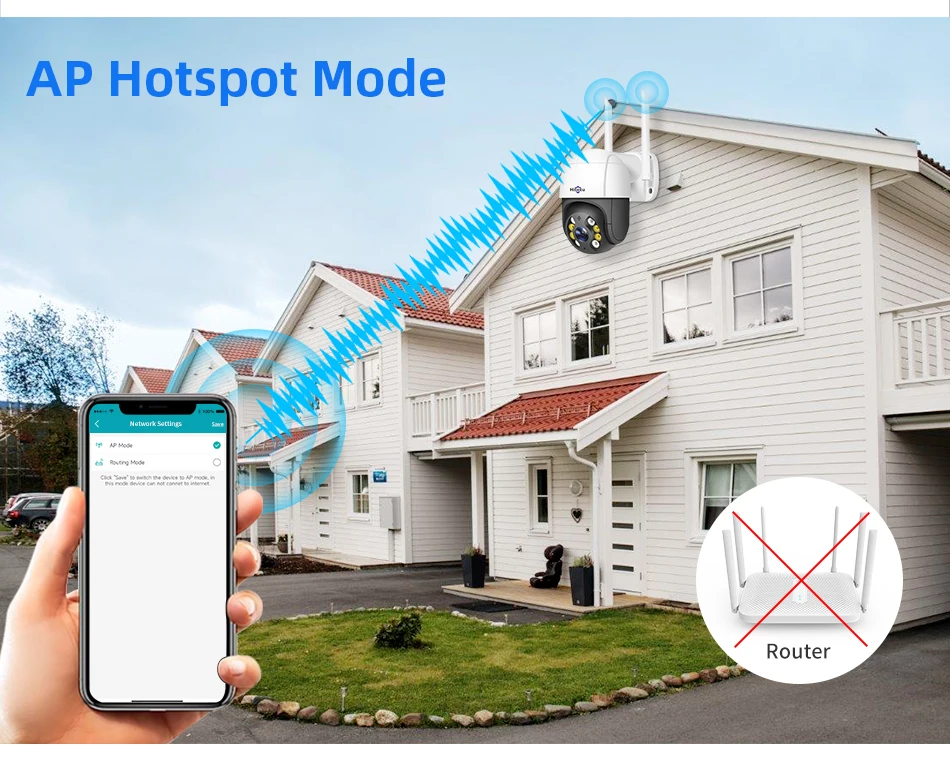
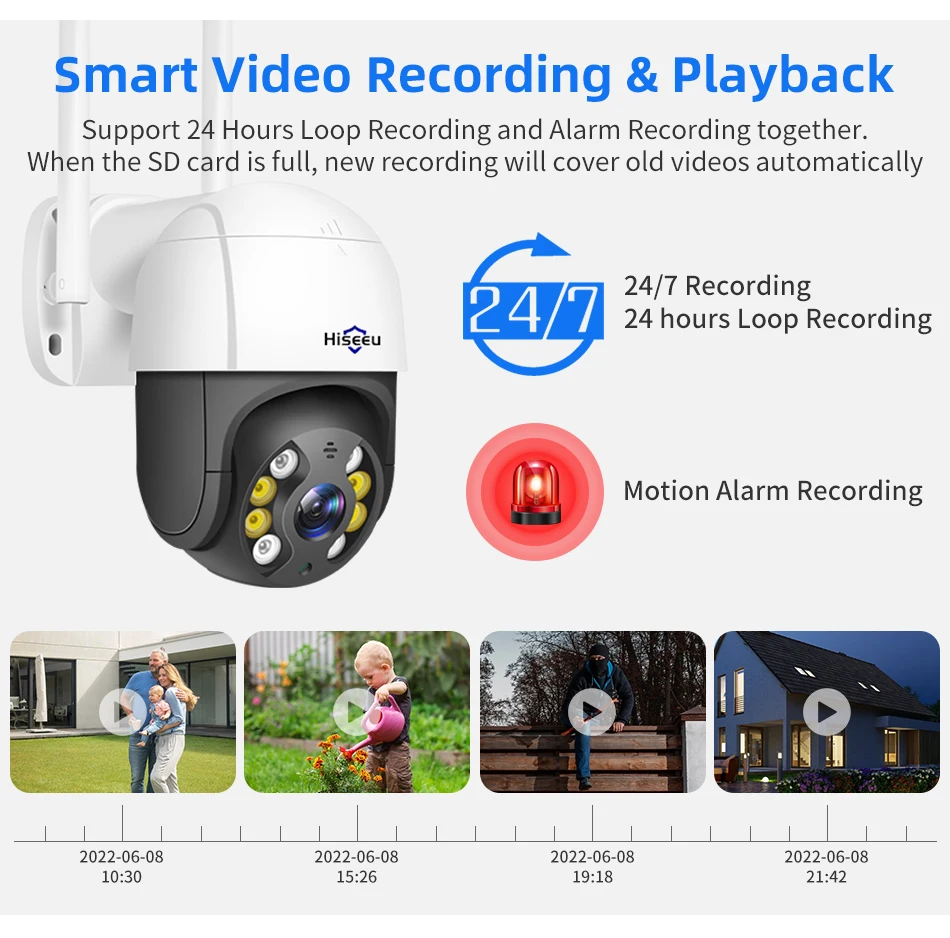
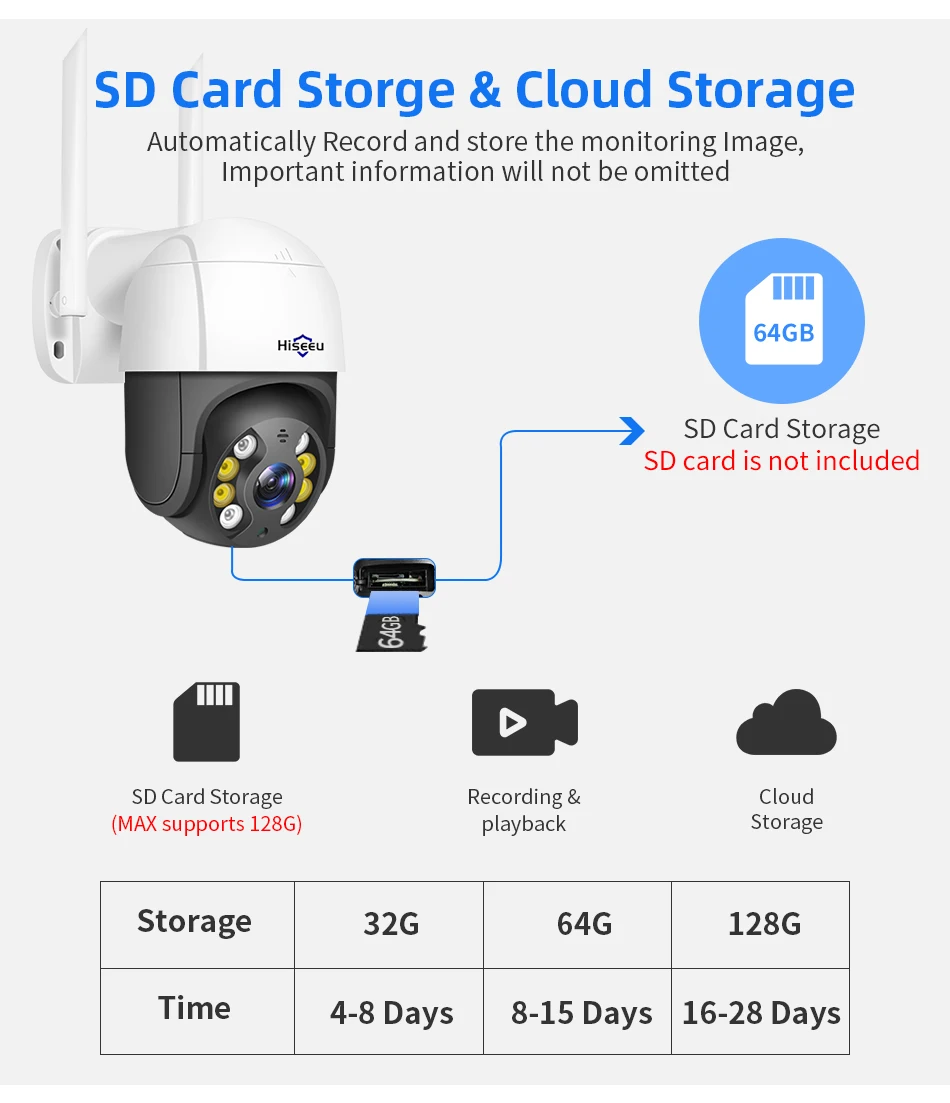
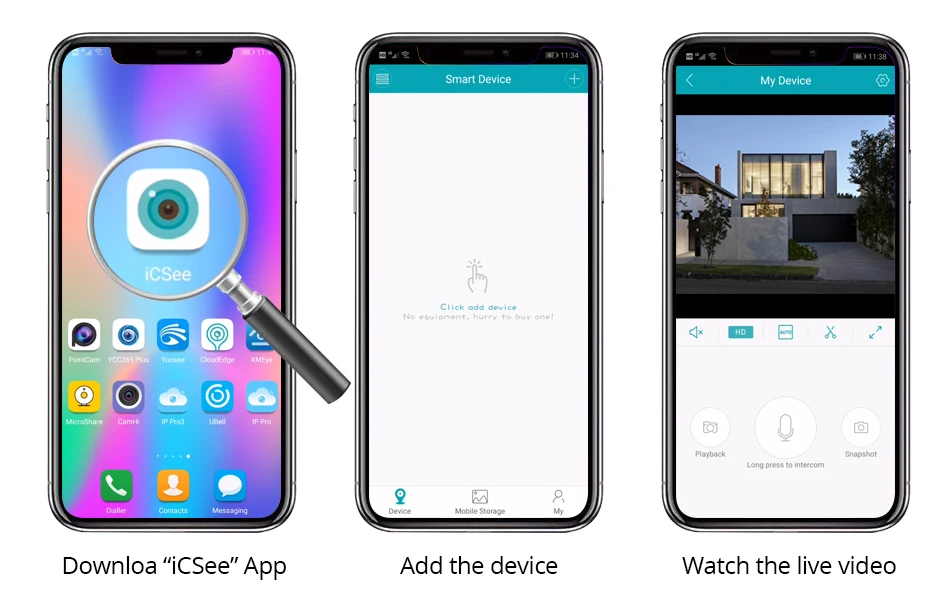
Ease of access via mobile devices in steps
Support for multiple devices

How to add device steps? 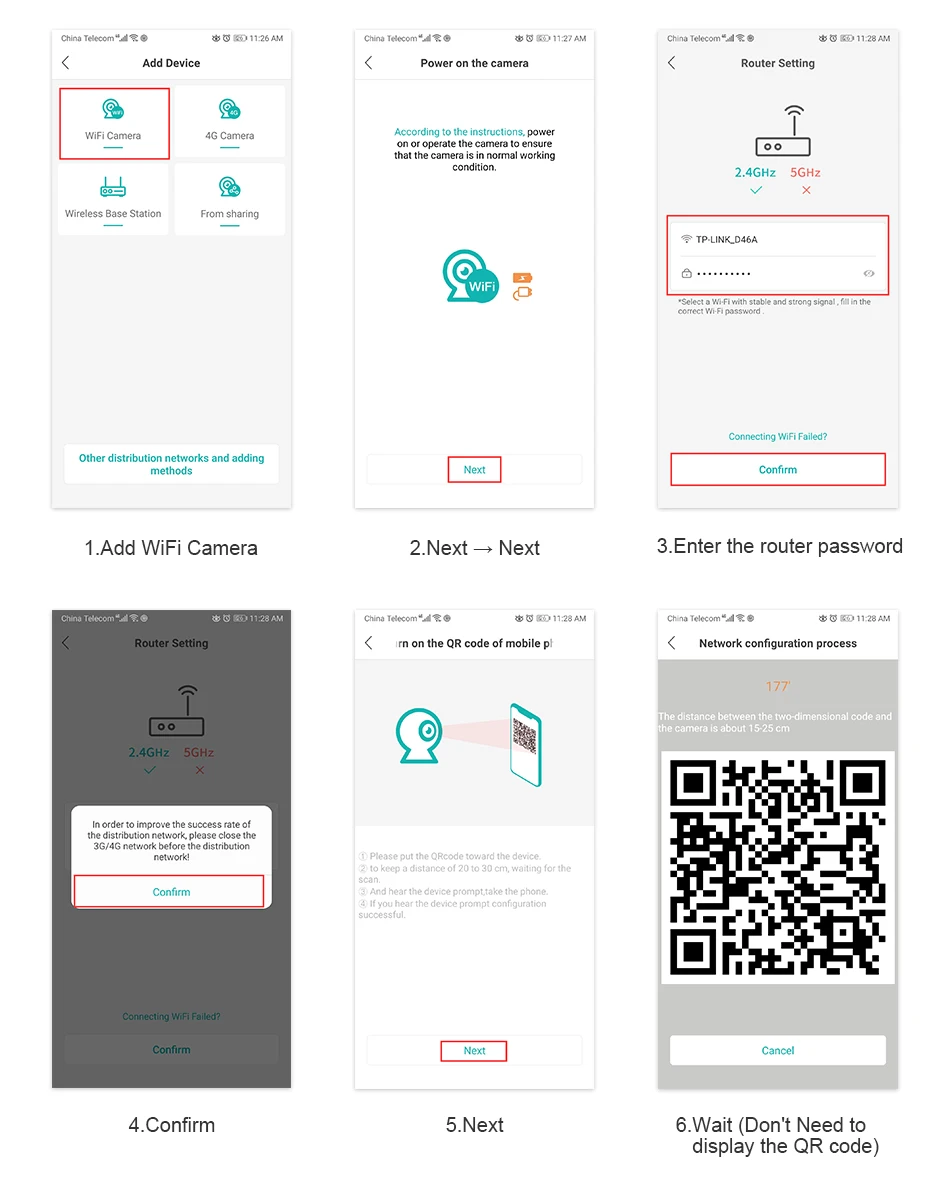
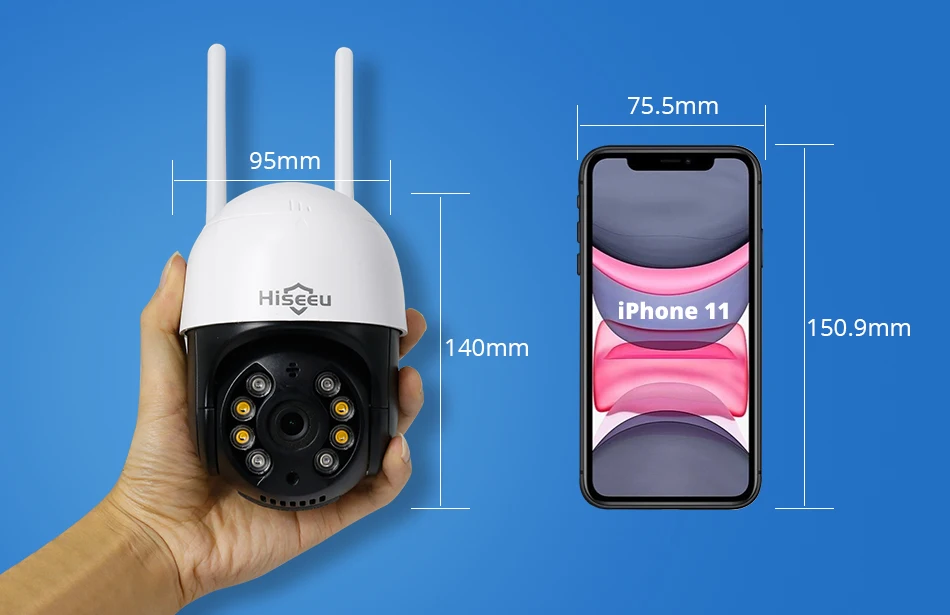
Extremely small size

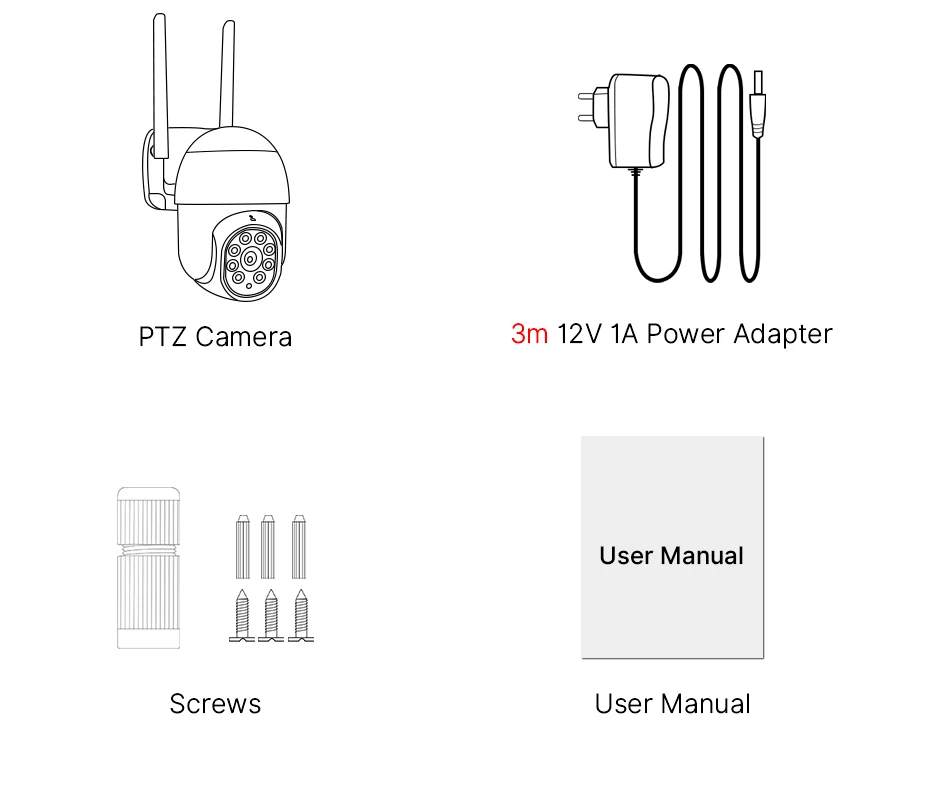
What is listed
 Frequently Asked Questions
Q1: What should I do if the device is connected but cannot speak?
In the lower left corner of the application monitoring screen, click the 'horn' button, and press and hold the 'microphone' button to speak. You can release the 'microphone' button after speaking.
Q2: What should I do when the SD card cannot be recognized?
Q: Please turn off the camera, then insert the card first, and then reconnect the wifi after turning it on (it is incorrect to insert the card after connecting);
Q3: How do you view the images on the SD card that is connected to the computer?
Q: 1. Please download the "DISKPLAYER" (https://download.xm030.cn/d/MDAwMDE0MDM=)?? 2. Insert the SD card into the computer, then open the "DISKPLAYER", you can view photos and videos. Note: Do not format the SD card;
Q4: Does it support 5G wifi?
Q: 5G WIFI is not supported, now it supports 4G WIFI;
Q5: How to set a reminder for the app's alarm image?
In the upper right corner of the application monitoring screen, click on settings - smart alarm - 'enable' and click on 'report';
Q6: How to set up 'automatic tracking'?
In the upper left corner of the application's monitoring screen functional area, click on 'Mobile Tracking,' and click the 'On/Off' button;
Q7: How to adjust the heart of the application monitoring screen (up/down/left/right)?
In the upper right corner of the application monitoring screen, click on settings - basic settings - 'Flip image left and right' / 'Translate image up and down';
Q8: How to adjust the lights?
Q: Please open the app, find 'Lighting' - settings, and there are three modes to choose from;
Q9: What should I do if I can't connect to the camera?
Q: Please check the connection steps and video call in the detailed introduction.
Specific connection steps:
1. Connect the mobile phone to the WIFI router; press and hold the device's restart button for 6-8 seconds, then release it after hearing the prompt tone to reset the device to its initial state;
2. Download the 'ICSEE' app, create an account, and log in;
3. Click on "+" in the ICSEE app, then click on "WIFI Camera"; click "Next" twice;
4. Enter your router account number and password (usually entered automatically) on the router settings page, click 'OK', and turn off the mobile data for your phone card (do not turn off WIFI);
5. Open the mobile QR code and click on 'Next';
6. Enter the network configuration page and a QR code will appear. Please display the QR code 10-20 cm in front of the lens. Listen for the prompt tone 'QR code scanning the system', then wait for the matching network for 180 seconds;
7. When you hear 'connection successful', the connection is successful, set the device password and save it, click 'next', turn on the camera, and it will be successful.